 NEWS
NEWS
Apple's CarPlay Gains Quick-access Task Switcher With iOS 10.3
 03/29/2017
 2388
2388
Upon updating their iPhone to iOS 10.3, CarPlay users will find that their in-vehicle system now offers a convenient multitasking menu, showcasing the three most recently used apps —with some caveats intended to keep eyes on the road.
Previously, CarPlay simply featured a small, permanent link to Apple Maps on the left menu. But now, with iOS 10.3, AppleInsider has discovered there are icons for three apps, and they automatically change based on the user's most recent activity.
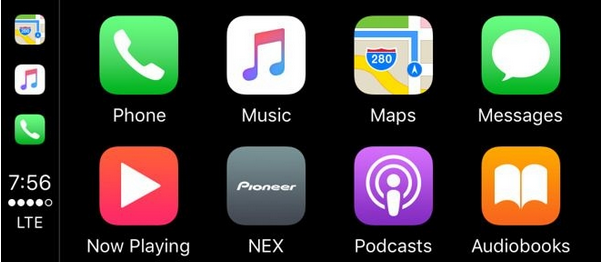
The dynamic task switcher applies to apps opened directly on the CarPlay unit, and also to apps most recently used on the connected iPhone itself, provided they offer CarPlay support.
The new task switcher can even support third-party CarPlay apps, such as Amazon Prime Music.
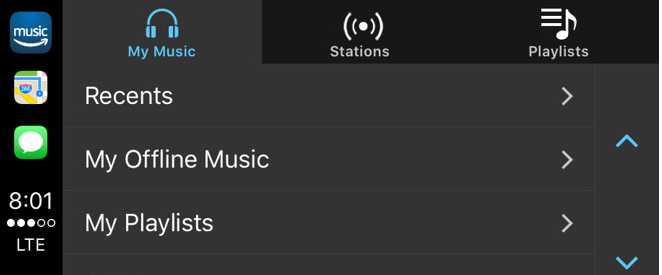
However, considering CarPlay is intended to keep eyes on of the road —and away from the dash —Apple has instituted some restrictions on how the task switcher works.
Regardless of the most recently used apps, Apple Maps is always listed on the task switcher somewhere among the top three, moving down to the lowest slot if it has not been used in some time. Either Apple's native Phone or Messages app will occupy another of the three spaces— but only one, if a different third app has been used recently.
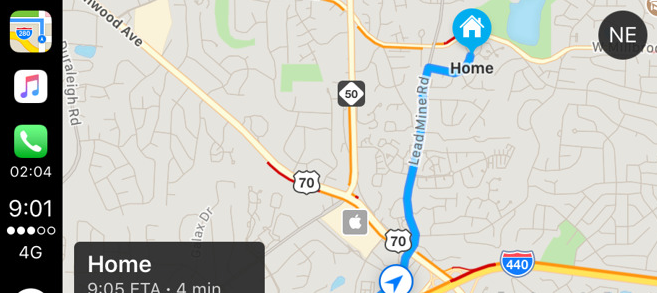
For example, using Maps, then Messages, then Amazon Music will display those three in reverse order.
As with on the Apple Watch, the recently used apps list can also act as something of a dock. The trio of icons are always on display on the left side, above the time, LTE connectivity indicator, and virtual home button. Unlike with the Apple Watch, however, apps in the task switcher cannot be pinned to make it a "true" dock.
The leftmost icons displayed in CarPlay with iOS 10.3 also gain a new feature for the Phone app. When in a call, CarPlay now displays the current call time underneath the Phone icon in the new switcher.
iOS 10.3 was released on Monday, bringing support for the new Apple File System, as well as Find My AirPods functionality for Apple's truly wireless earbuds. Users have encountered a lengthy install time when updating to iOS 10.3, likely due to the switch to APFS.
Source: appleinsider