 NEWS
NEWS
iPad Owners Cannot Restore iCloud Backups from iPhones Running iOS 12.1.2
 01/07/2019
 2151
2151
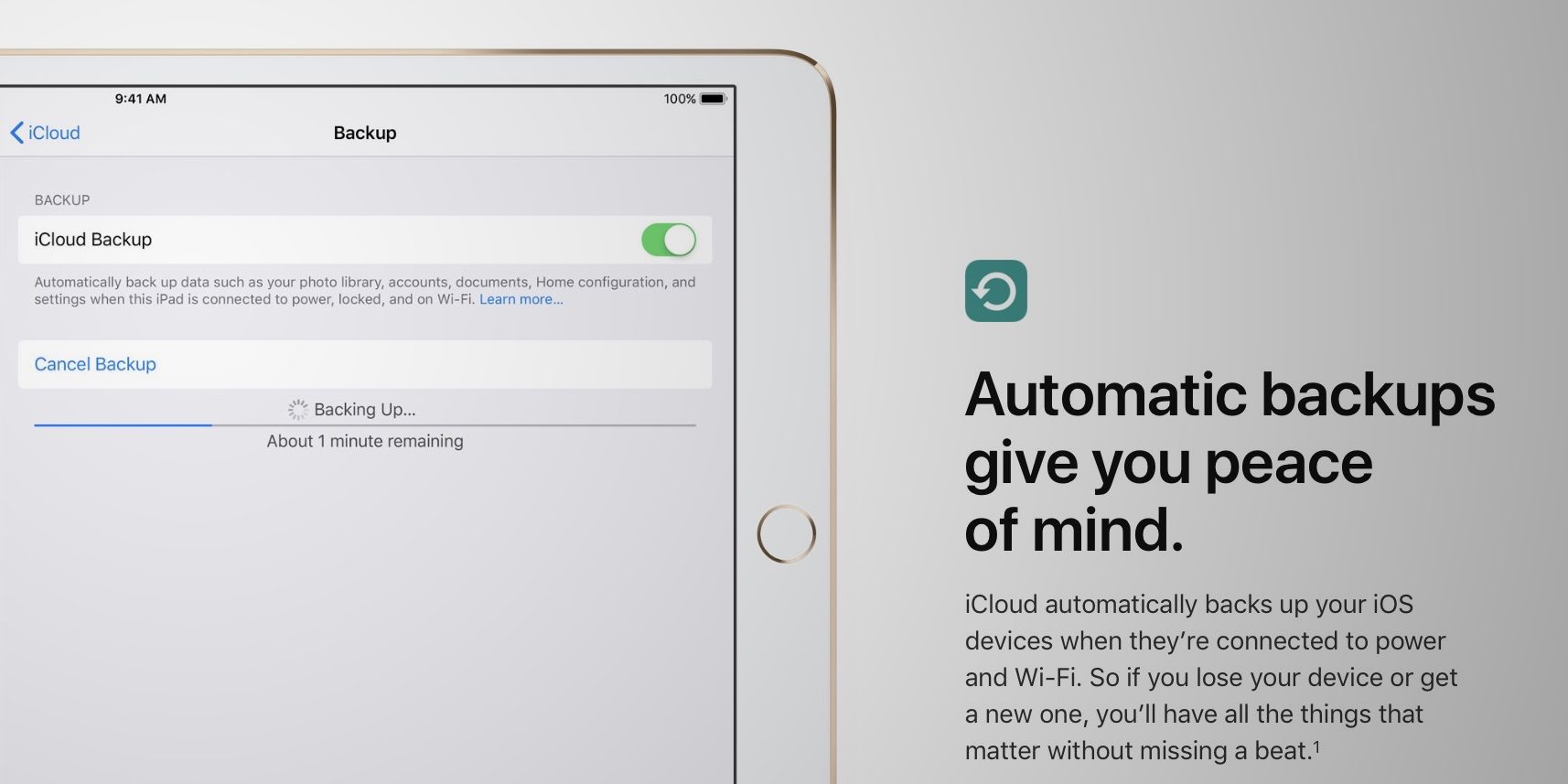
Here’s an interesting little wriggle: Apple rushed out iOS 12.1.2 for iPhone users at the end of last year. However, it did not release a corresponding update for the iPad. This means that the rush of new iPad owners over the Christmas season hit a problem: they simply cannot restore iOS 12.1.2 iPhone backups to the iPad.
TechRadar put the spotlight on this issue that doesn’t really have a workaround.
Normally, a user is able to freely restore a backup made on an iPhone to an iPad, or vice versa, as both devices run the same operating system.
The iCloud system does not let a user restore an iCloud backup associated with an iOS version that is newer than the iOS version installed on the device.
If a user tries to restore a backup that is too new, the iOS setup screens are smart enough to guide the user through Software Update before continuing.
However, Apple has caused an issue for itself as the iOS releases for iPhone and iPad are out of sync. iPads can only update to iOS 12.1.1, whereas iPhones can update to iOS 12.1.2.
Therefore, currently, there is no way for someone with an up-to-date iPhone to do an iCloud backup and seamlessly move that over to an iPad.
There’s no obvious solution either, until Apple releases the next iOS software update which will be available for all devices. iOS 12.1.3 is currently in beta, and will be available on iPhone and iPad when it is released to everyone, naturally resolving the platform discrepancies. Apple has not announced a release date for iOS 12.1.3, but it will probably be pushed out later in January.
In the meantime, a user could opt to restore an earlier iPhone backup, before the device updated to iOS 12.1.2, or simply setup the iPad as new.
Starting as new isn’t as bad as it initially sounds, as many iCloud features will sync their data outside of the backup payloads. For instance, if you have iCloud Photos enabled (nee iCloud Photo Library), the photo library will appear on the iPad as long as the device is logged into the same iCloud account. An example of something that will not be carried over by setting up as new, is that third-party apps will need to be installed again and the home screen layout will need to be rearranged from scratch.
Source: 9to5mac