 NEWS
NEWS
Apple no Longer Signing iOS 12.3-12.3.2, Hindering Downgrades from iOS 12.4
 08/01/2019
 2491
2491
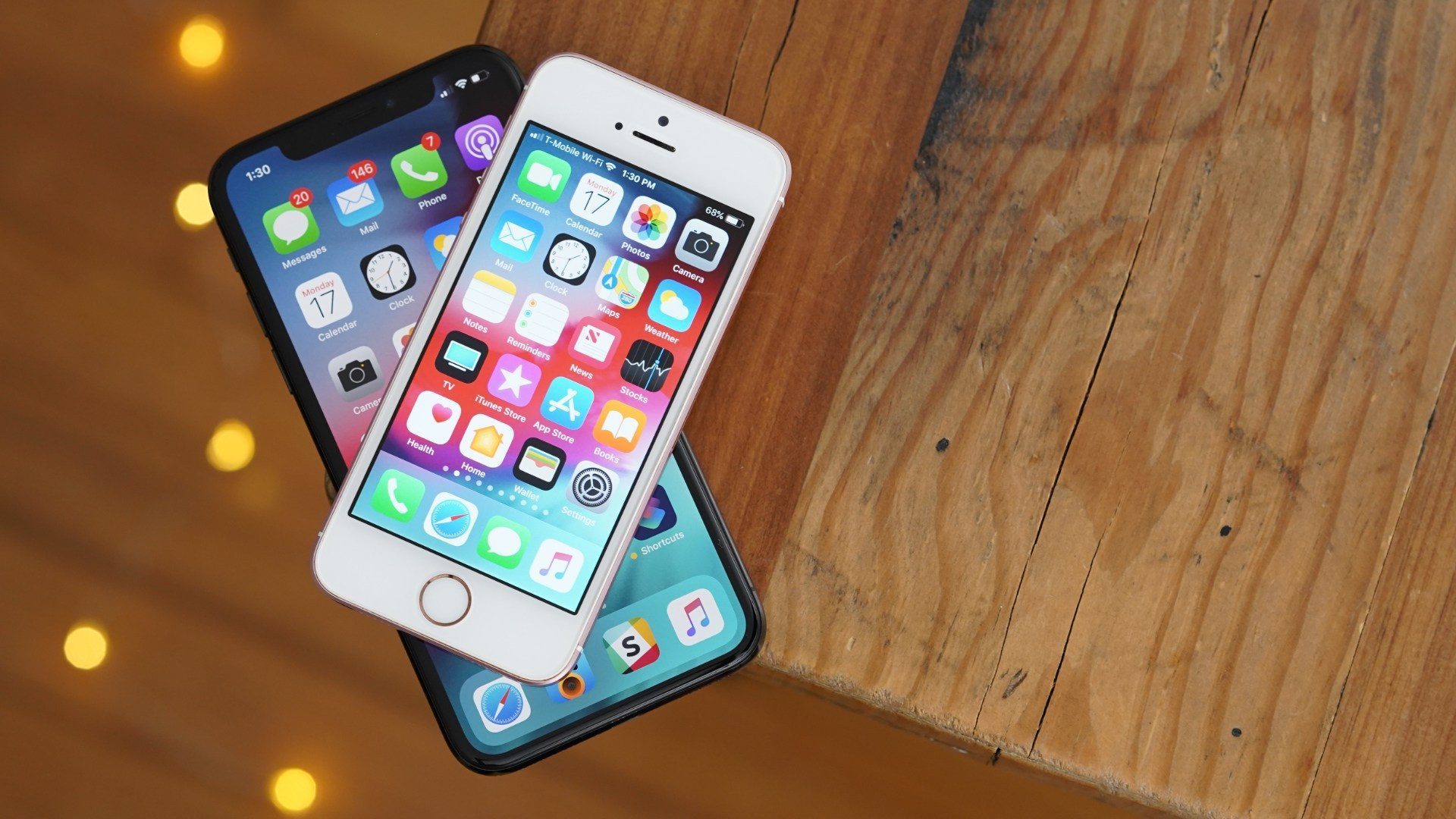
Apple is no longer signing iOS 12.3, 12.3.1, or 12.3.2 for its mobile device lineup as of Wednesday evening, a move that prevents users from restoring to any firmware version older than iOS 12.4, which was released to the general public just last Monday.
It’s not uncommon for Apple to stop signing older versions of iOS, especially a week or two after releasing a new update, but it’s particularly noteworthy that Apple stopped signing at least three iterations of iOS in one fell swoop this week, which doesn’t happen too often.
The reason Apple stops signing older versions of iOS is to promote software updates among its user base. In preventing firmware downgrades, the company effectively ensures that users are taking advantage of all the latest and greatest features and security updates. An unfortunate side effect of this scheme is that it makes restoring to jailbreakable versions of iOS more difficult, albeit not impossible.
Apple’s decision to stop signing iOS 12.3-12.3.2 this evening doesn’t impact the jailbreak community much since the latest jailbreakable version of iOS is 12.3 beta (which excludes the iOS 12.3 public release). With that in mind, jailbreakers are already using earlier versions of iOS, and the only way current events could become a problem is if those same users needed to restore via iTunes for any reason.
If you’re currently on iOS 12.3-12.3.2 and you’re waiting for a jailbreak, then the best thing to do is stay where you are. Given all the exploit releases in recent memory, however, chances are in your favor that these versions could become jailbreakable in the future. While that’s not a guarantee by any stretch, rule of thumb suggests that it’s more likely an exploit would be released for iOS 12.3-12.3.2 than for iOS 12.4.
For the record, there are legitimate reasons for non-jailbreakers to want to downgrade their iOS device’s firmware as well, such as if an update introduced a critical bug of some sort. These cases are much less common, however.
As always, you can monitor the firmware signing status for any of your iOS devices with the online IPSW.me utility.
Source: idownloadblog