NEWS

Apple Stops Signing iOS 12.4, Blocking Downgrades Following Jailbreak Release

09/12/2019

2732

Apple Stops Signing iOS 12.4, Blocking Downgrades Following Jailbreak Release


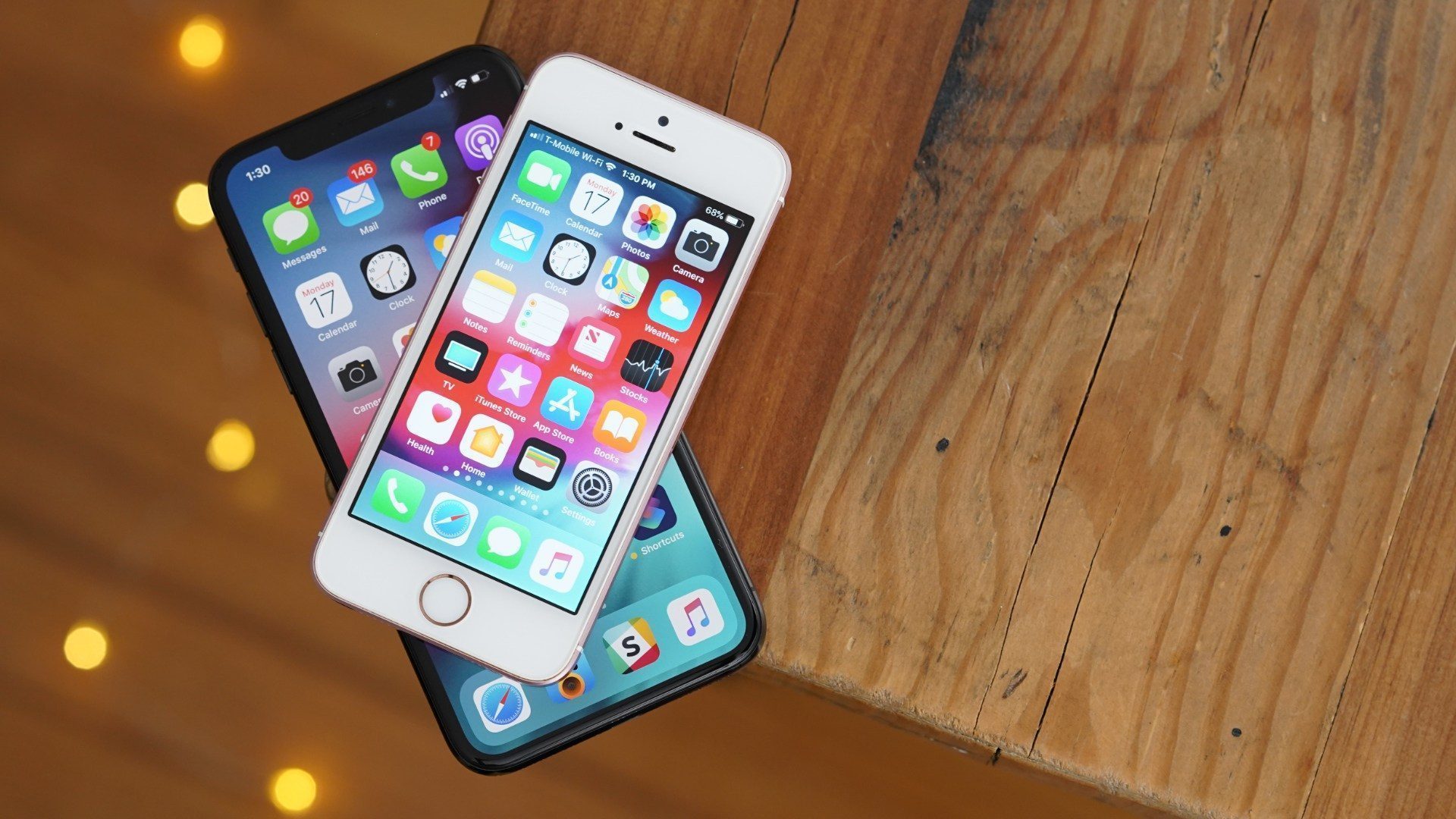
Following the release of a public jailbreak last month, Apple today has stopped signing iOS 12.4. This means users can no longer downgrade from iOS 12.4.1 to iOS 12.4.


A week after the jailbreak was shared publicly, Apple released iOS 12.4.1 to close the vulnerability. The jailbreak was released after it was discovered that Apple accidentally unpatched a vulnerability that was originally fixed in iOS 12.3.


The bug in question was first reported to Apple by Google’s Project Zero team. Apple detailed the fix in the security release notes for iOS 12.3. The jailbreak took advantage of that loophole.


When Apple stops signing an iOS version, it means users are no longer able to downgrade to that version via iTunes. Downgrading is common among users who are waiting on jailbreak updates, especially in this instance given the public availability of a jailbreak for iOS 12.4.


The ability to downgrade is sometimes also useful to those who experience significant bugs after updating to the newest version of iOS. This is why Apple generally waits several weeks before it stops signing older versions of iOS.


The public release of a jailbreak for modern iPhones has become increasingly rare. In general, jailbreak details are kept private to keep Apple from patching it. Furthermore, jailbreaks are coveted among security researchers because of potential payouts available in the security market.


Apple will release iOS 13 to the public on September 19th, followed by iOS 13.1 on September 30th.


Source: 9to5mac
Windows
Mac OS
iOS
Linux
3uTools
Win 64-bit For this device
V6.0.1 2024-12-18
Download
Win 32-bit For this device
V6.0.1 2024-12-18
Download
3uTools
Intel Chip How to Identify Chip Type
V6.0.1 2024-12-18
Download
Apple Silicon
V6.0.1 2024-12-18
Download
How to Identify Chip Type
1.  Click the Apple icon in the top-left corner of the screen and select About This Mac.
2.  Check the Processor or Chip field to determine if it is "Intel" or "Apple".
Please use the 3uTools PC client to install the iOS client:
1、 Install either the Windows or Mac version of 3uTools on your computer
2、 Open the PC client and connect your device to the computer via USB cable
3、 After the connection is successful, wait for the computer to automatically install the mobile app for the device, or locate “Install Mobile App” on the computer and manually click to install.
3uTools
deb file
V6.0.1 2024-12-18
Download
rpm file
V6.0.1 2024-12-18
Download
Windows
Windows
iOS
iOS
Android
Android
TV
TV
3uAirPlayer
Win 64-bit For this device
V6.0.1 2024-12-18
Download
Win 32-bit For this device
V6.0.1 2024-12-18
Download
iOS Device Mirroring (No App Required)
1、 Install 3uAirPlayer on the Windows PC
2、 Open Control Center and select Screen Mirroring
3、 From the list, choose your PC to start mirroring
4、 Or connect your iOS device to the PC via USB to begin mirroring
Scan to get "3uAirPlayer" App
3uAirPlayer TV V6.0.1
2024-12-18
TV System Requirements: Android 7.0 or later
Download the TV installation package, copy it to a USB drive, insert it into your TV or set-top box, then select the file from the home screen to install.