 TUTORIALS
How to Downgrade iPhone4s to iOS 6.1.3?
 08/08/2017
 7113
7113
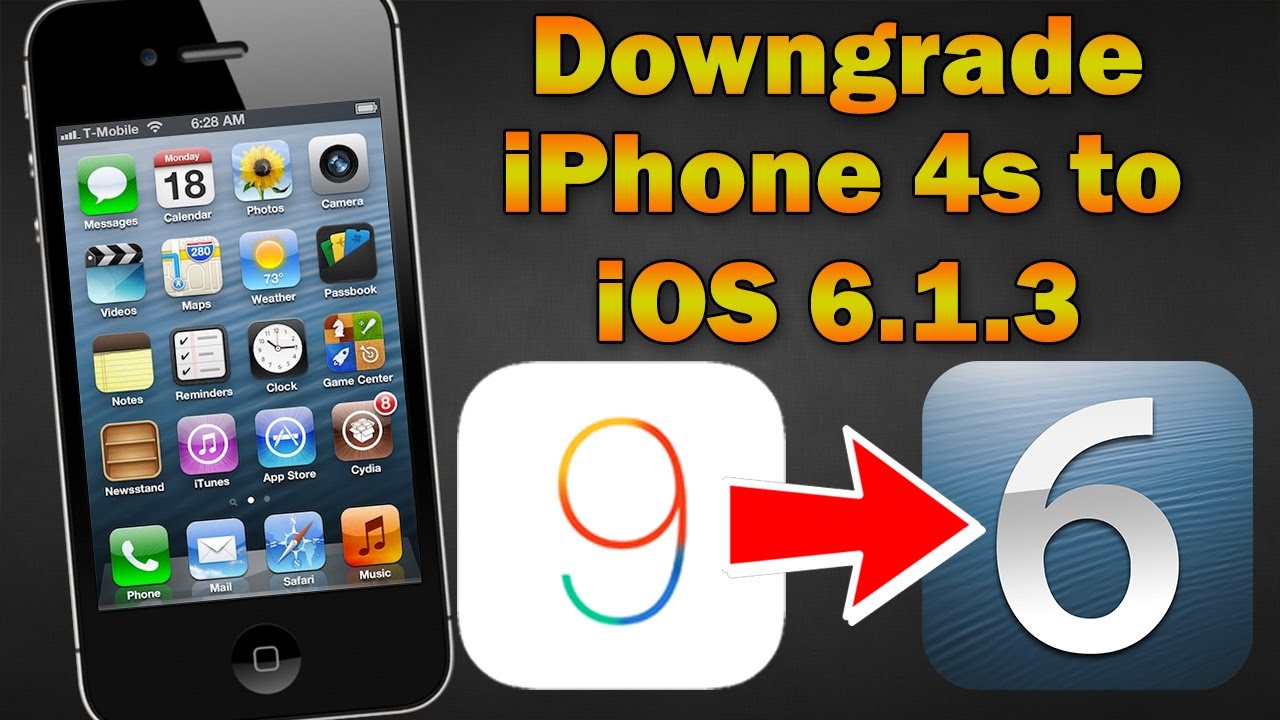
It is known to all that iOS system has changed a lot, if you want to experience the old iOS system, you may keep reading the content below, this tutorial aims to show you how to downgrade iPhone4s to iOS 6.1.3.
# Preparations
A jailbroken iPhone4s.
Install OpenSSH and Core Utilities from Cydia.
Download and unzip downgrade tool for windows, then you’ll see a folder named idevicerestore and two other apps, Win32OpenSSL-1_0_2c.exe, winscp5.7.3.5438setup.1432114150.exe. Copy and paste the three items mentioned above to the root directory of C disk.
Install the two exe files.
Install the latest iTunes for Windows.
Make sure your iDevice and computer using the same WLAN.
# Connect iPhone to computer
Get your iPhone’s IP address. Go to Setting app, click WLAN -> click the exclamatory mark behind the WLAN name -> find the IP address.
Launch Winscp you installed before,choose SCP, enter the username root and the password alpine.
If it shows iDevice is connected to computer, you may continue your operations. If not, please restart your iPhone and try again.
# Enter DFU mode
Back to Winscp, find kloaderhe and pwnediBSS from Kloader+pwnediBSS of C disk, then drag them to the window on the right.
Right click the file -> Properties-> General -> Attributes -> select r,w,x.
Open Terminal by pressing Ctrl + T.
Enter chmod + x Kloader and click the execute button. Continue to enter ./kloader pwnediBSS and click the execute button. Now your iPhone should stay in DFU mode. (Don’t set your iPhone into DFU mode by manually)
# Downgrade iPhone
Connect your iPhone to computer using the USB cable.
Press Win + R to launch it, and then enter cmd to open command prompt.
Continue to enter cd\, then press Enter.
Continue to enter cd idevicerestore for windows, then press Enter.
Continue to enter idevicerestore.exe -e fistmedaddy.ipsw, then press Enter.
After finishing executing the commands, your iPhone4s should be downgraded to iOS 6 successfully.