
TUTORIALS

How to Use iPhone X Gestures on iOS 11 – iOS 11.1.2?

02/03/2018

6787

The biggest change in Apple’s new iPhone X is the disappearance of the Home button. With the button gone, Apple’s using the extra real estate to change how you interact with the iPhone, altering the gestures with which you’ve become familiar. This tutorial aims to show you how to use iPhone X gestures on iOS 11 -iOS 11.1.2.


Before we start, you need to download and install some necessary tools on your iPhone.

How to Use iPhone X Gestures on iOS 11 – iOS 11.1.2?


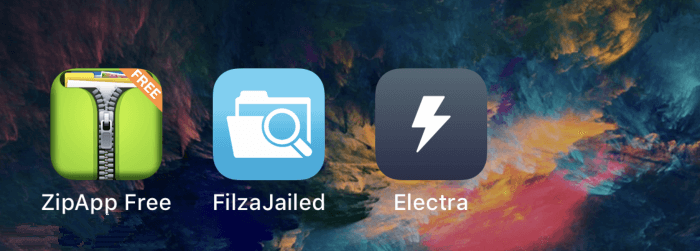
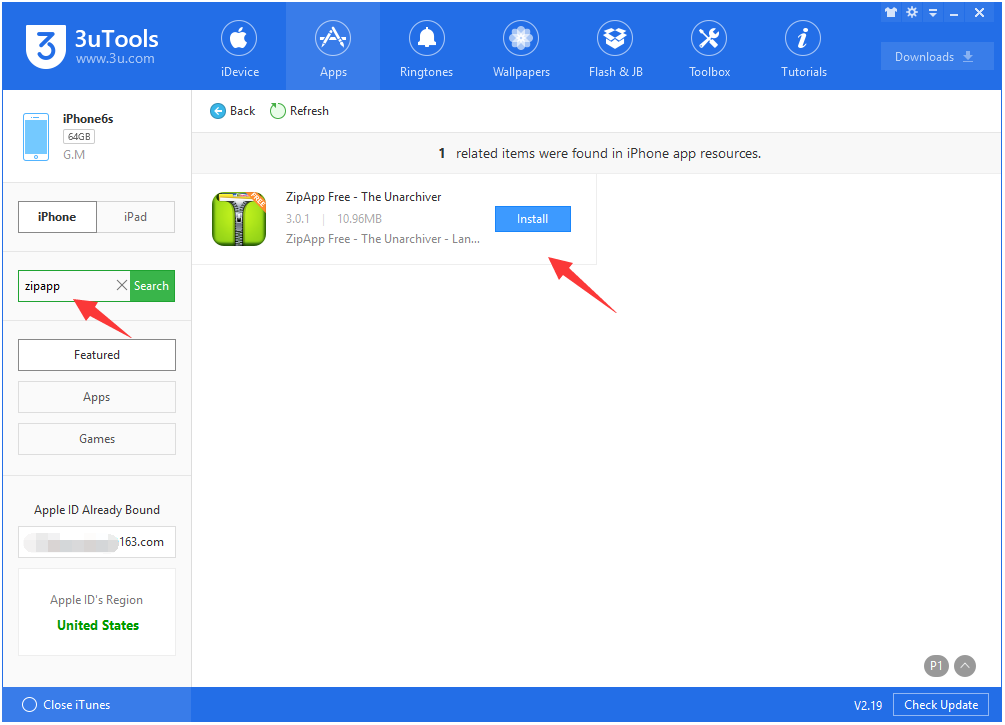
* ZipApp Free

It is available to download in 3uTools

How to Use iPhone X Gestures on iOS 11 – iOS 11.1.2?


* FilzaJailed

You may follow this tutorial to install: FilzaJailed – Filza for iOS 11.1- 11.1.2 with Read/Write Privileges  


* Electra jailbreak

Electra jailbreak has been updated to beta 6, but it is still in beta version. For ordinary iOS users, please don't use this tool and wait for a later release. we are not responsible for any damage that may be caused to your iOS installation by any tweaks or executables you load after the jailbreak.


Step1: Download Fluid Enabler in Safari, then open it with ZipApp Free.


Step2: It will switch to ZipApp automatically, just click Yes.


How to Use iPhone X Gestures on iOS 11 – iOS 11.1.2?


Step3: Go to Favorites in FilzaJailed, then click Application manager.


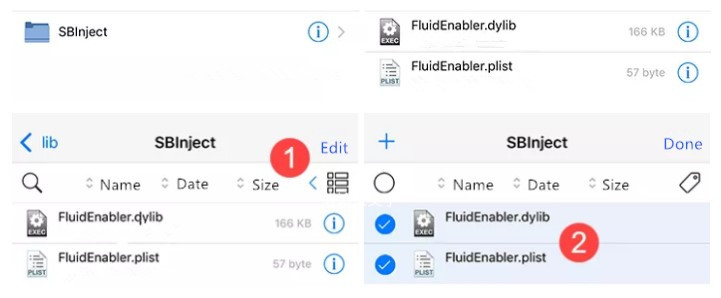
Step4: Then go to ZipApp Free, and you’ll see two documents FluidEnabler.dylib and FluidEnabler.plist.

Documents/Imported Files/FluidEnabler/usr/lib/SBInject

How to Use iPhone X Gestures on iOS 11 – iOS 11.1.2?


Step5: Click Edit, then select the two files above and click Copy, then back to the last catalog and paste them into /usr/lib/SBInject.


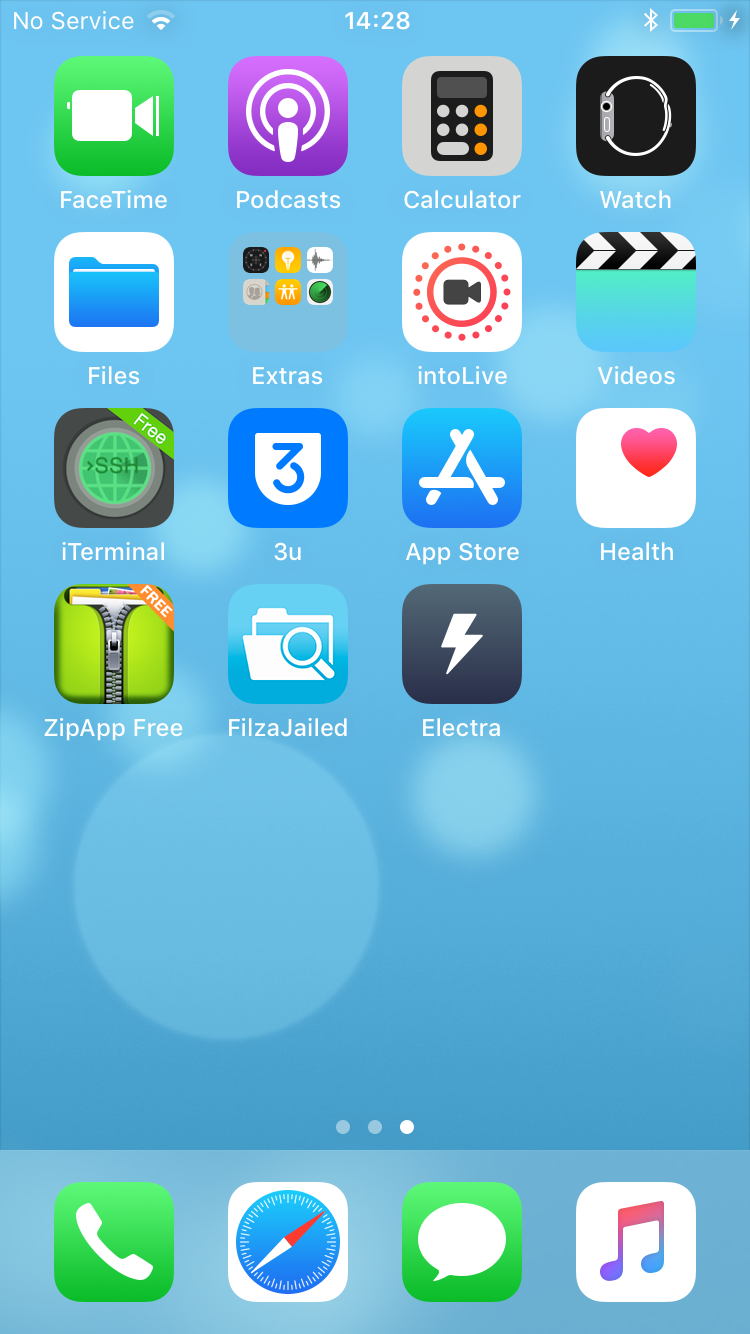
Step6: Restart your iOS device, then jailbreak your iOS device with Electra.

How to Use iPhone X Gestures on iOS 11 – iOS 11.1.2?


Step7: After that you can enjoy the iPhone X gesture on your iOS 11- iOS 11.1.2 iOS devices.


Windows
Mac OS
iOS
Linux
3uTools
Win 64-bit For this device
V6.0.1 2024-12-18
Download
Win 32-bit For this device
V6.0.1 2024-12-18
Download
3uTools
Intel Chip How to Identify Chip Type
V6.0.1 2024-12-18
Download
Apple Silicon
V6.0.1 2024-12-18
Download
How to Identify Chip Type
1.  Click the Apple icon in the top-left corner of the screen and select About This Mac.
2.  Check the Processor or Chip field to determine if it is "Intel" or "Apple".
Please use the 3uTools PC client to install the iOS client:
1、 Install either the Windows or Mac version of 3uTools on your computer
2、 Open the PC client and connect your device to the computer via USB cable
3、 After the connection is successful, wait for the computer to automatically install the mobile app for the device, or locate “Install Mobile App” on the computer and manually click to install.
3uTools
deb file
V6.0.1 2024-12-18
Download
rpm file
V6.0.1 2024-12-18
Download
Windows
Windows
iOS
iOS
Android
Android
TV
TV
3uAirPlayer
Win 64-bit For this device
V6.0.1 2024-12-18
Download
Win 32-bit For this device
V6.0.1 2024-12-18
Download
iOS Device Mirroring (No App Required)
1、 Install 3uAirPlayer on the Windows PC
2、 Open Control Center and select Screen Mirroring
3、 From the list, choose your PC to start mirroring
4、 Or connect your iOS device to the PC via USB to begin mirroring
Scan to get "3uAirPlayer" App
3uAirPlayer TV V6.0.1
2024-12-18
TV System Requirements: Android 7.0 or later
Download the TV installation package, copy it to a USB drive, insert it into your TV or set-top box, then select the file from the home screen to install.